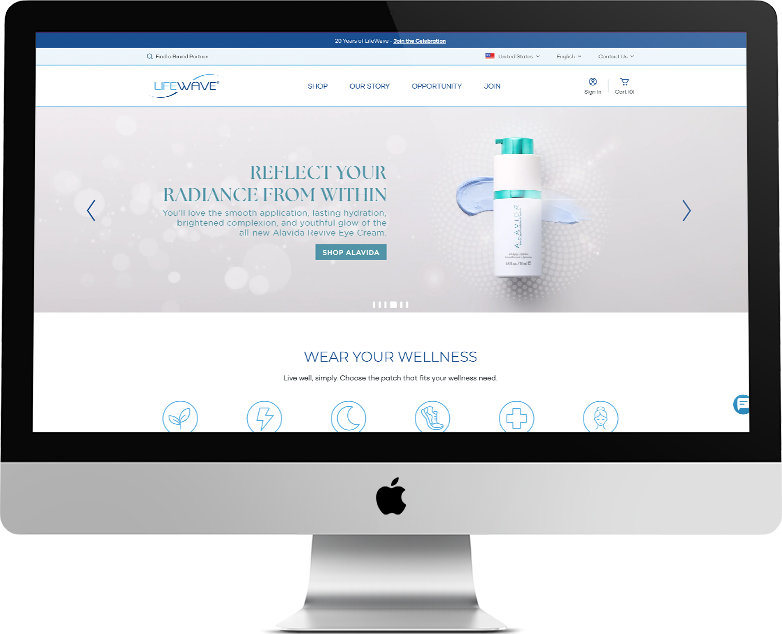
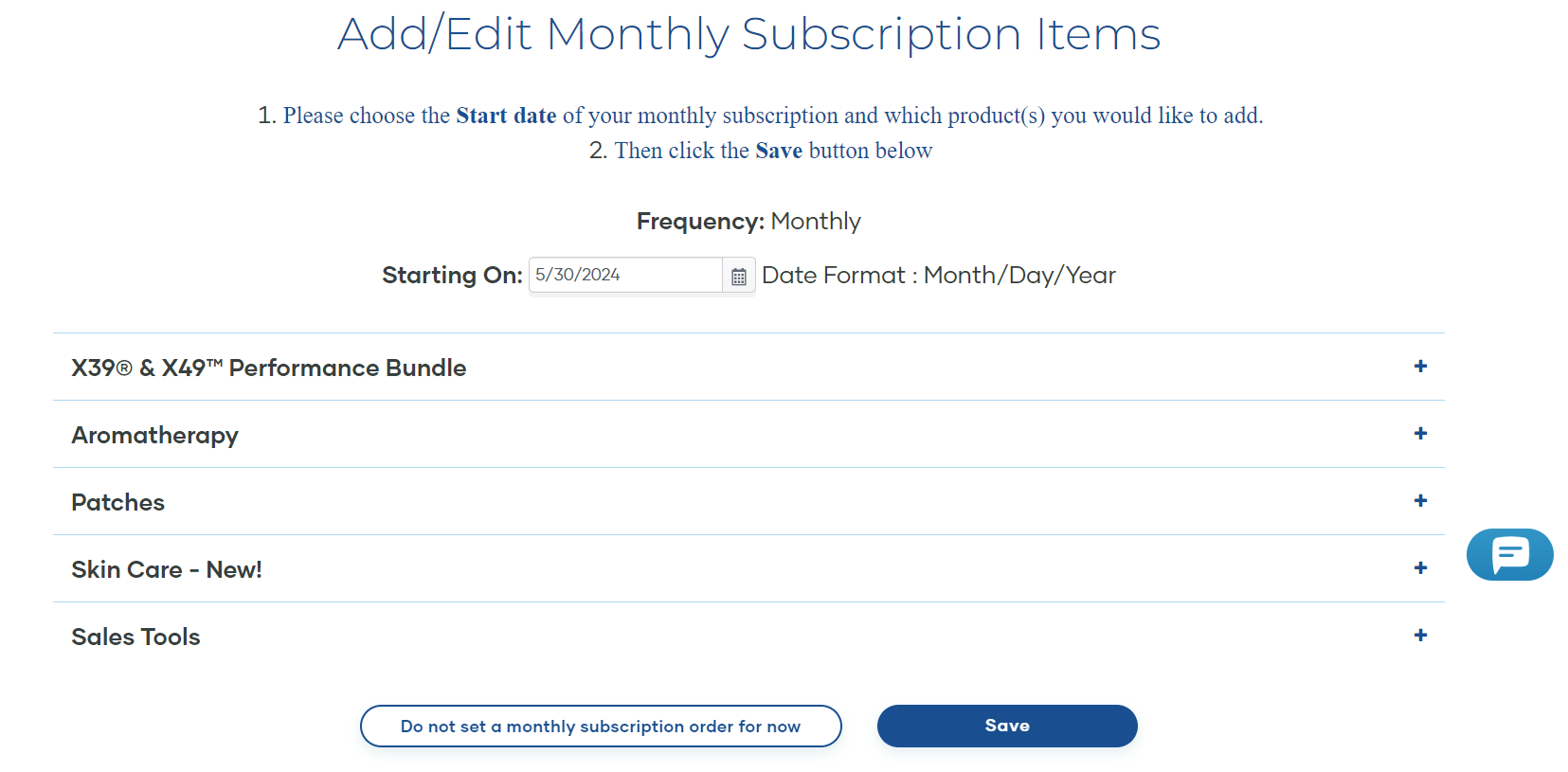
Access your new website to order additional products or manage your monthly subscription. You can also share with others, and receive a thank you check for sharing, upon order placement:
www.lifewave.com/xxxx (first & last name or company name)
Before you sign in, take a look around to give yourself an idea of what your customers see when they go to your website.
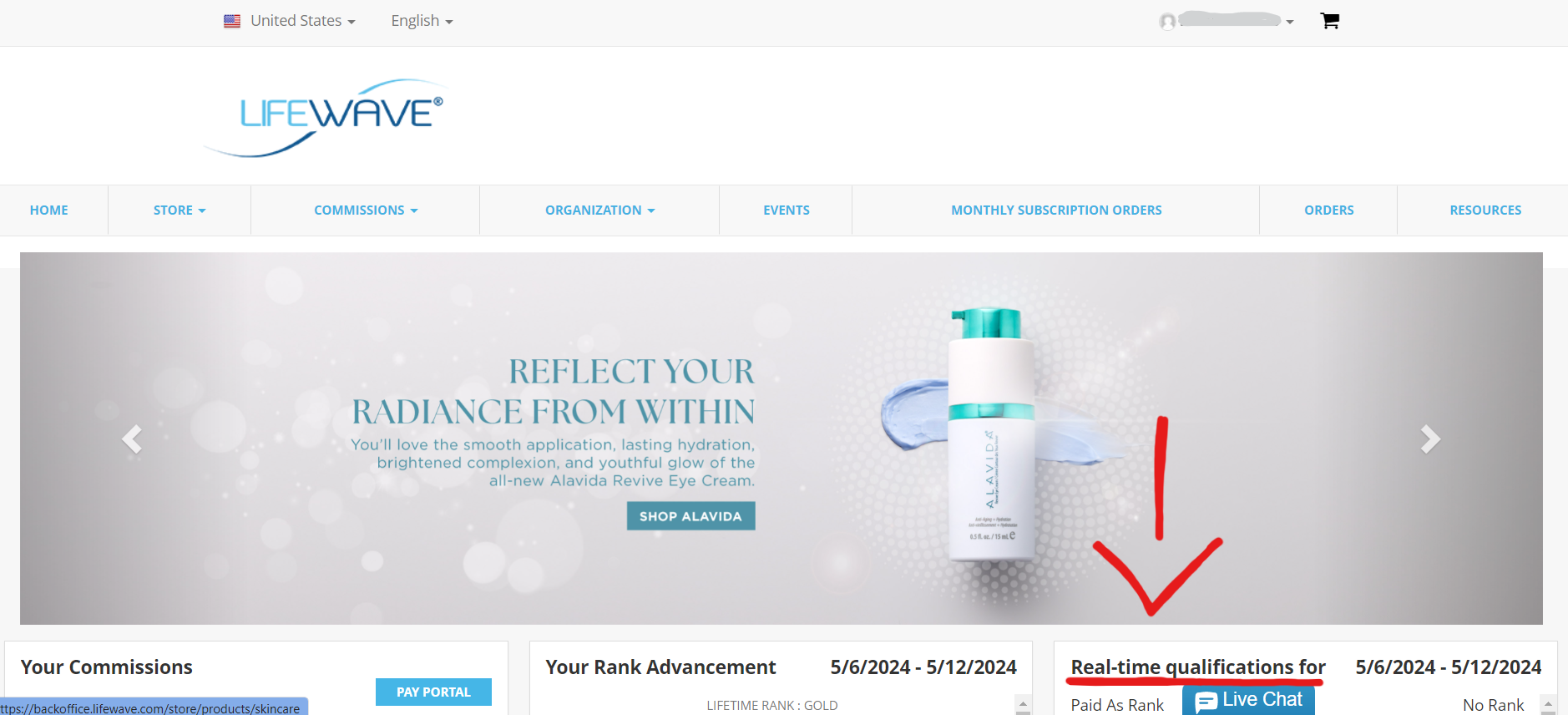
To sign in, click the sign-in button on the top right of screen (next to the cart)
Login: xxxxx (first & last name, lowercase, no space)
Password: Xxxxxxx (starts with first name, capital first letter only)
When you’ve logged in, it will direct you to your “back office”.
IN YOUR BACK OFFICE:
Weekly Commissions are displayed.
Rank level advancement status is available by clicking – VIEW PROMOTION DETAILS. This will allow you to visualize the remaining steps necessary (items in red) to reach the next level
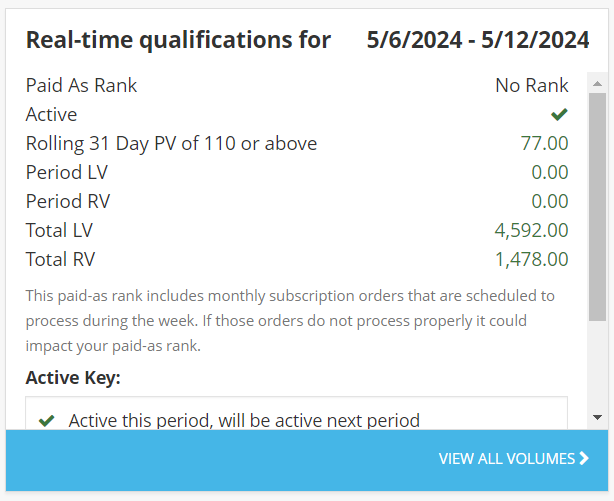
Real-Time Qualifications for the week are displayed
Active Status = ✅ PV (Personal Volume) of X in past 31 days
Period LV = BV (Business Volume) on left leg
Period RV = BV on right leg
BRAND PARTNER ID#: #XXXXXX
Your Brand Partner ID is a 6-digit code. Use your ID# for LifeWave InTouch app registration and Customer Service
If you are a LifeWave Brand Partner, log in to your Back Office at www.lifewave.com, hover over the “Store” tab, and then click on the “All Products” button from the dropdown.
Step Two:
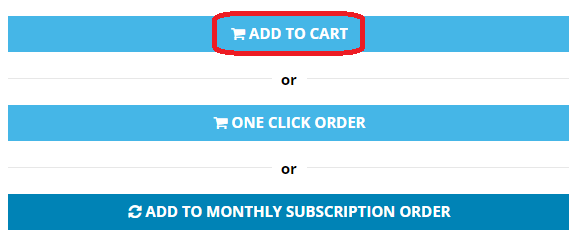
You can choose which product you would like to purchase by selecting the product in question and choosing from the options listed on the product page (being “Add to Cart” or “Once Click Wonder” or “Add to Monthly Subscription Order”.)
Step Three:
After choosing your product, you can return to the “All Products” page from the dropdown and select other products.
Step Four:
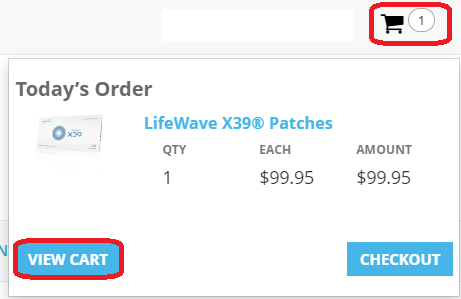
Once you’ve decided on the products you would like, click on the shopping cart in the top right-hand corner of the web page and click on the “View Cart” button.
Step Five:
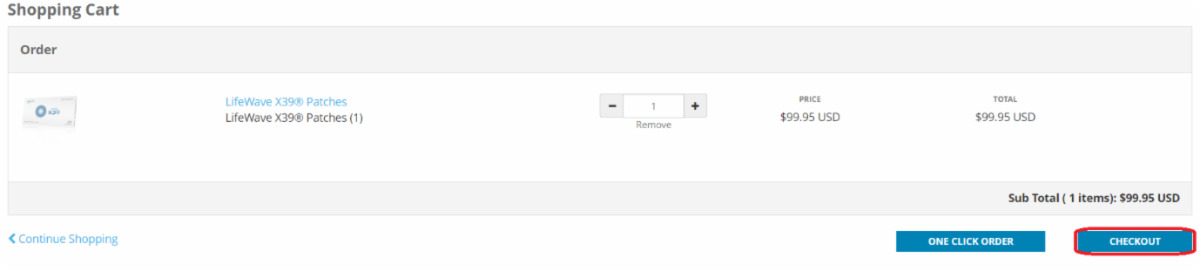
After reviewing your order, click on the “Checkout” button and follow the instructions to complete your order or monthly subscription order.
Step One: Log into back office.
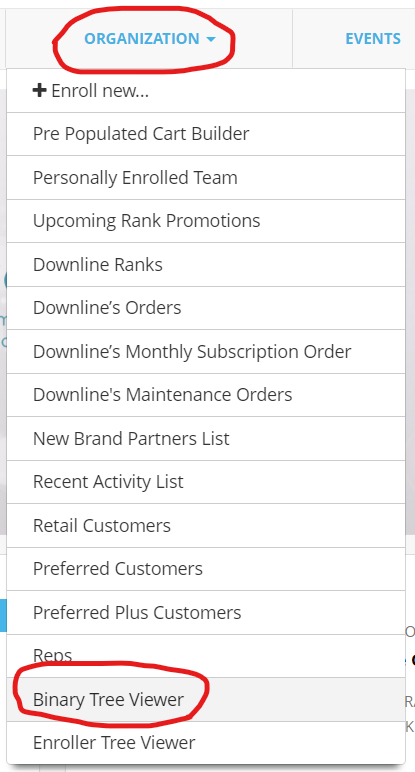
Step Two: Select ORGANIZATION
Step Three: Select BINARY TREE VIEWER
Step Four:
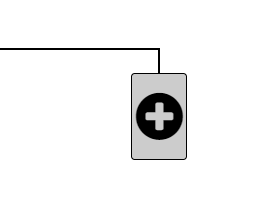
Select an open box (on an outer leg, NOT an inside leg) with a black plus sign
Tip: goal is to be somewhat balanced. You need one Silver or higher “active – ordering 55 PV or $79.95 a month” on each leg to begin earning from points / binary.
Placement tips:
Product Intro Bonus is ALWAYS earned, no matter if you are “active” in the system. Provided you’ve made a purchase within the year, to stay in the system.
To earn from binary system, points BV, you must have one active Silver or higher on left and right legs.
Always build on the outer leg of those below you, referred to as the SHARED leg. This inspires teamwork to invectives people to build their other leg, in order to begin earning.
Keep in mind, those below you must still sponsor one on left and right to earn from BV / points. Then, they would build their own inside leg to build their organization.
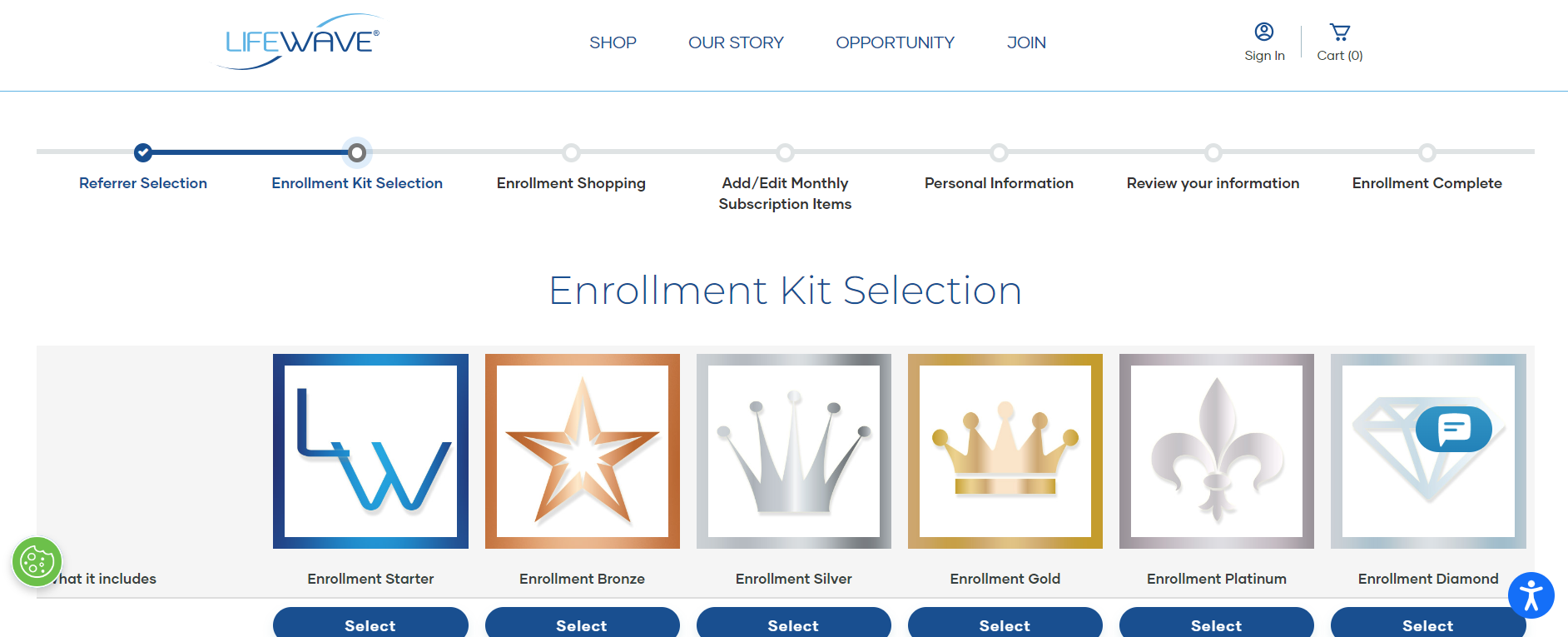
Step Five: Select the pack of choice. Silver or Gold are best intro packs. But, if you have multiple people using patches, have a complicated health case or are a practitioner / retail outlet, then the Diamond kit is the best option, to get the lowest price. And there are great advantages if you’re looking to share / earn as a side business.
You can always upgrade to the next level, and receive a credit for what kit you’ve already purchased.
Or upgrade to the next level the following month. Silver to Gold is great, because you get one Bonus supportive pack of your choice, FREE. Higher level upgrades receive more free product as a bonus.
Step Six: Activate monthly subscription with at least X39 to keep repair cells activating. You pick the ship date, 26 – 28 days later to allow for shipping time so you don’t run out.
Once you log in to your back office, see “Real-Time Qualification” and scroll down
In the Real-Time Qualifications section, you will find:
Paid As Rank; determines your maximum earnings for the commission cycle.
Active Status: a green check means you are qualified for next commission cycle. If you see anything but a green check mark, scroll down in the Real-Time Qualifications section to use Active Key to understand the meaning.
Period LV & RV (Left-leg Volume & Right-leg Volume): this is your points from the current week.
Total LV & RV: this is your total points. As long as you stay active (the green check mark), your points are retained. Stay active by making a monthly purchase of 55+ PV (110+ PV if manager and above). Rolled over points expire after 52 weeks old, if not previously compensated for.*
For more information about the points system, visit the HOW TO EARN MONEY section below.